
UEM 9 with App Volumes 2.11
I am currently working with a client on a Horizon 7 (7.01 to be exact) install that also consists of using App Volumes 2.11 and User Environment Manager 9 (UEM 9). The install and configuration of vSphere, VSAN, servers, network, etc. had been really great up until we began our testing of UEM & App Volumes.
At a high level, the Horizon environment is setup with one desktop pool serving 50 Linked Clone desktops that will grow to a few hundred over time to support the business needs. The desktops are running Windows 8.1 utilizing a slimmed down Mandatory Profile along with the following agents; App Volumes 2.11, UEM FlexEngine 9, Horizon 7, as well as VMware Tools (version 10.0.6) of course. All VDI desktops are being dropped into their own Active Directory OU which is blocking inheritance from any upstream GPOs. That OU has 1 GPO linked to it that is controlling the UEM settings. Simple and straightforward.
The New Bug
Now that we have that configuration understood, here is the fun part. When we logged into a Windows 8.1 VDI desktop we got the Mandatory Profile, the AppStack, and the UEM settings such as desktop icons, etc. Then we got this odd new error that I had never seen: “Either ‘-r’ or ‘-s’ must be specified.”
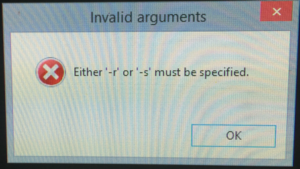
Hmm, I started to think to myself, “I know that -s switch from somewhere.” I was thinking of the FlexEngine.exe Logoff script (see below) that is called to capture the user settings on logoff. I ran off to double check that my GPO and the Logoff script was properly setup as well as checked to be sure this path actually existed in the Windows 8.1 Gold Image that our Linked Clones were spinning up from. I was hoping that I fat-fingered something in the GPO, but no luck. All looked good and configured per documentation.
C:\Program Files\Immidio\Flex Profiles\FlexEngine.exe -s
I did not want to go down the GSS route, but I did. I opened a ticket for VMware Support to review the GPO settings and this new error I’d never come across. After GSS was able to review the same things I had already received, they mentioned that this was a new error that currently has no public facing KB to support it. That said, GSS did have a reason and a solution they would share with us to resolve it.
The Why and How
In working with GSS I found that this error occurs with App Volumes 2.11 and UEM 9. How convenient, right? But at least we were getting somewhere. I was told that this issue is caused by the AppStack script allvolattached_shellstart.bat referring to a switch of FlexEngine.exe -ra which is not recognized in UEM 9.0.
This was not really even a UEM issue as I was thinking it was. This is an App Volumes issue that does not play well with UEM 9. Even though this is an App Volumes BAT file and switch issue, it also effects UEM’s ability to Export user settings at logoff since the FlexEngine.exe is not functioning as expected. So any user changes are never saved while this issue is
OK now what? At a high level, to correct this issue you need to first update the current AppStacks you are using. In our case this was only one. Then you need to update the AppStack template so that future application captures do not face the same errors. This fix procedure is not difficult, just time consuming.
Steps To Resolve
- Attach the current AppStack to your Provisioning Computer just the same as you would when you wanted to update an AppStack.
- Log in to the Provisioning Computer
- Note: Ensure that the pop-up window displays information that you are now in the provisioning mode.
- Open the computer management on the Windows machine.
- Go to Storage > Disk Management.
- Right-click CVApps and click Change Drive Letter and Paths.
- Assign a drive letter to CVApps.
- Take a Backup Copy of the allvolattached_shellstart.bat file from the root folder of CVApps and paste it on other location.
- Open the original allvolattached_shellstart.bat file using a text editor.
Locate C:\Program Files\Immidio\Flex Profiles\FlexEngine.exe -ra in the BAT file and change it to read:-
C:\Program Files\Immidio\Flex Profiles\FlexEngine.exe -UEMRefreshShortcuts
-
- Save and close the allvolattached_shellstart.bat file.
- Finish Provisioning AppStack as normal updates would go
- Test AppStack functionality as the error should be now gone & UEM settings exporting as expected.
- Repeat same steps for remaining AppStacks, if any.
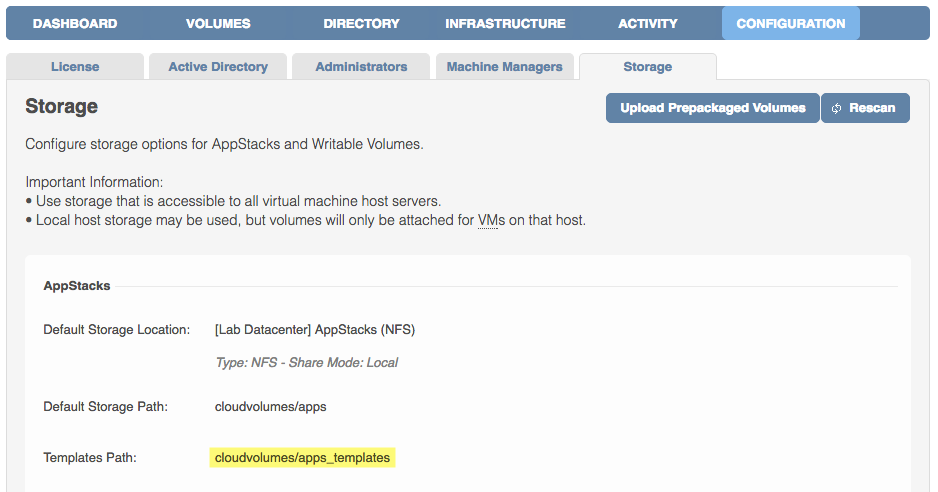
You will need to also do this to the AppStack template file (template.vmdk) that the stack was build from to avoid this happening to future application captures. That process is very similar but you will add a 2nd drive via the vSphere web client and point it to an existing VMDK, the template file that resides in your AppStack Default Storage location: cloudvolumes/apps_templates (seen below).
Closing Out
In closing I will say that this is definitely an odd error to me as I have yet to come across it until this client. The fix is quite simple but can be challenging if you are not familiar with the AppStacks & template mounting process. But if you are reading this I assume you are well versed. If not, no worries.
I will be updating this blog as I get the chance to add more pics to the steps. I wanted to get this out into the community to share with others until VMware can make the fix public with a KB, or a patch comes out. If anyone knows about this issue being fixed in UEM 9.1 that was released on September 15th, please let me know!
Until next time, Share, Tweet, Repeat!
As of 9-21-16, VMware has officially published this KB (https://kb.vmware.com/kb/2146474) to help this issue. I personally think that the ‘AppStack Template’ section steps are misleading where they call out mounting the AppStack to a machine that has no App Volumes agent installed on it, then in the next step saying “Log in to the Provisioning Computer”. Well we that use App Volumes know the Provisioning Computer must have the App Volumes agent on it to create an AppStack. They should be saying “Log in to the virtual machine that has no App Volumes Agent installed on it to make the changes”…or something along those lines to not confuse.
Have you noticed longer than normal logon times using this combination of products? I am working on a similar project, but with WIndows 7, and the VMware Logon Monitor fling shows the AppVolumes process taking in excess of 60-90 seconds logon delay, resulting in 2m+ logon times.
Hey Philip,
We did have sorta long login times at ~55 seconds which is like watching water boil! We were able to cut that down to ~40-45 seconds by sliming the profile down a bit more. I think in this case where we have Win 8.1 and the tendency to have larger profiles just from the OS build, we had to rely on Mandatory Profiles to keep the size small. I’d love to try that fling because from what I have heard from VMware internally is that an AppStack should only be adding ~5-8 seconds at login. 60-90 second delays would make me wanna kick the box off the table! Darn that is long! Is there a lot of GPOs doing Loopback Processing at login too? I know that helped us by killing off unneeded GPOs to speed up logins (before getting rid of GPOs, we saw a 3min login time).
I will keep my eyes/ears open in case I hear anything else. I’d love to hear from you if things got better or worse in your situation.
Nigel
Hi Nigel,
This is a current “internal issue” acknowledged by VMware with AppVolumes 2.11. Long story short, the code was adjusted in the 11th hour before release and it had a detrimental impact to logon speeds and the ability to use some of the variables configurable via registry keys to accelerate AppStack mount in parallel with the shell being displayed. As of Wednesday this week, I have it on good authority that 2.11 release 1 will be available as a hotfix download and in Q4, 2.12 will be the official release within which this fix and others will be integrated.
Thanks
Andrew
Great work here, this fixed it for me!
you can also double check the config changes to the .bat in C:\Snapvolumestemp\