
This blog post will go over running Windows 10 Technical Preview within VMware Fusion 6. The Windows 10 Technical Preview was recently announced during the first week of October via pictures only. Recently Microsoft took it one step further and released the technical preview as a downloadable ISO for all to enjoy.
I never usually jump to being one of the first guys to install a new Microsoft OS, but for some reason I felt this one was worth a try. And of course because I’m installing it in a virtual machine I can control what it has access to and ultimately kill it off whatever I’m done with it, or it ticks me off. So far so good.
First Things First
Head on over to Microsoft’s Windows 10 Technical Preview download page and grab your ISO. It’s quite large so give it some time to download.
Once that part is out-of-the-way let’s start by making another virtual machine within Fusion. I chose the operating system Windows 8 (64-bit) build as Windows 10 is not an option yet within VMware Fusion 6. This way I figure I’m pretty close to a Windows 10 build in reality.
Configure the new virtual machine with all of the default settings and if you feel the need to change the amount of RAM do so now. I left mine at 2 GB just for this test. Once Windows starts installing on the VM you should be done in less than 15 minutes give or take.
Windows Setup and 1st Time Use
Once your installation is complete and you move on to the windows setup wizard you’ll see that it’s pretty similar to Windows 8. You will need a Verification Code that MS sends you during the 1st steps of the setup. Plus that in.
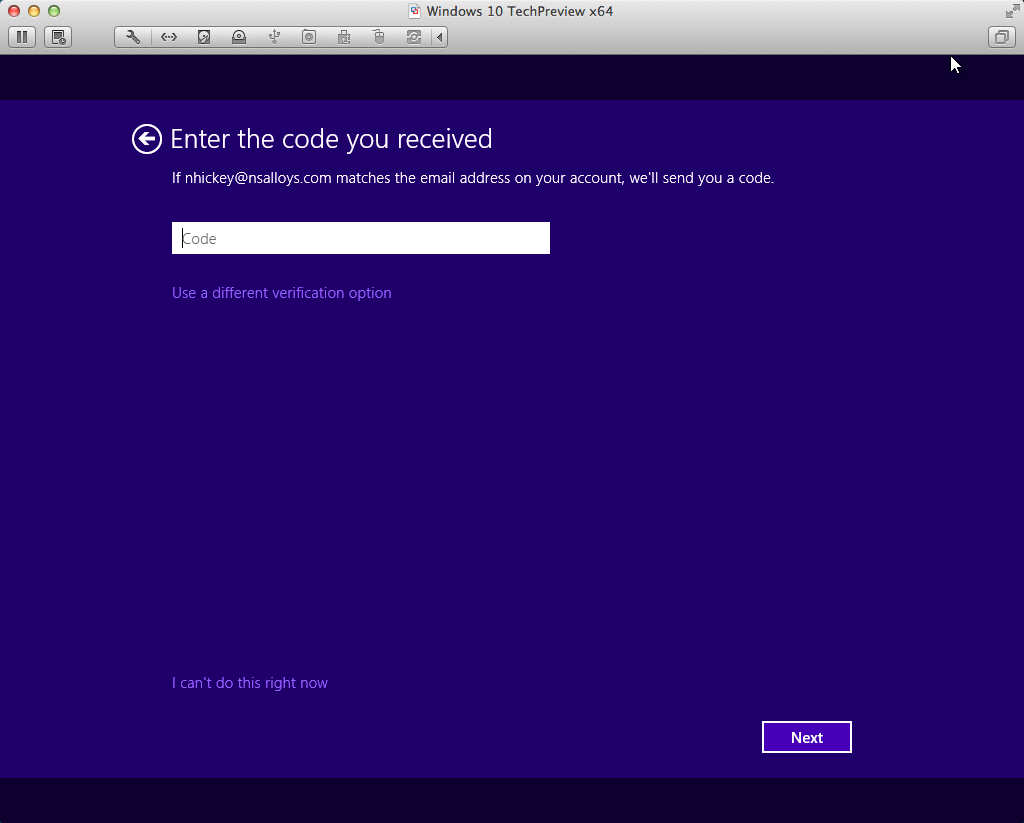
Microsoft wants you to login with your Outlook.com or Hotmail.com email address that also allows you to use what they call one of your favorite email clients, so your Yahoo or Gmail address will work.
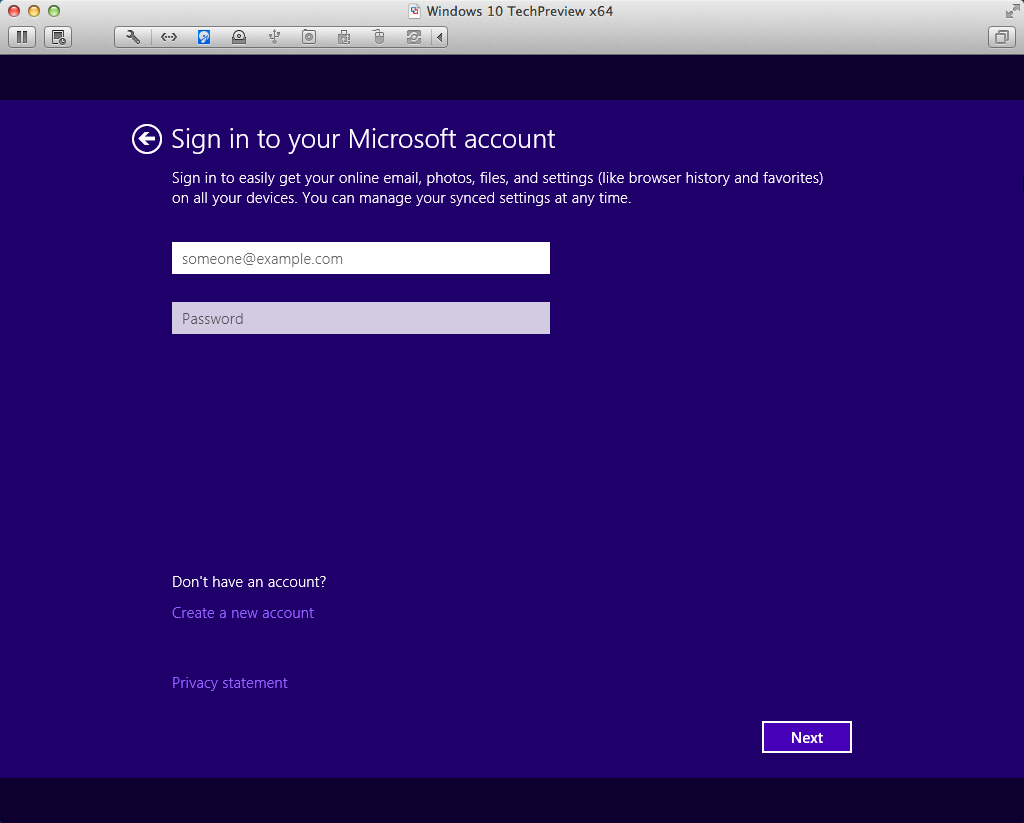
I think this part should be optional as they’re trying to tie all of your cloud services” gather for easy access within Windows 10. I think they need to leave this alone and just go back to the original username set up. Once this OS is introduced into the enterprise I would not want my users using their personal Hotmail Gmail or Outlook.com accounts to synchronize with their work PCs. It does work with your corporate domain account so that’s a plus but then again you’re just adding more complexity by even asking that question set up, my opinion. A few days after my install I heard there is a way to bypass this altogether but I have yet to try that out.
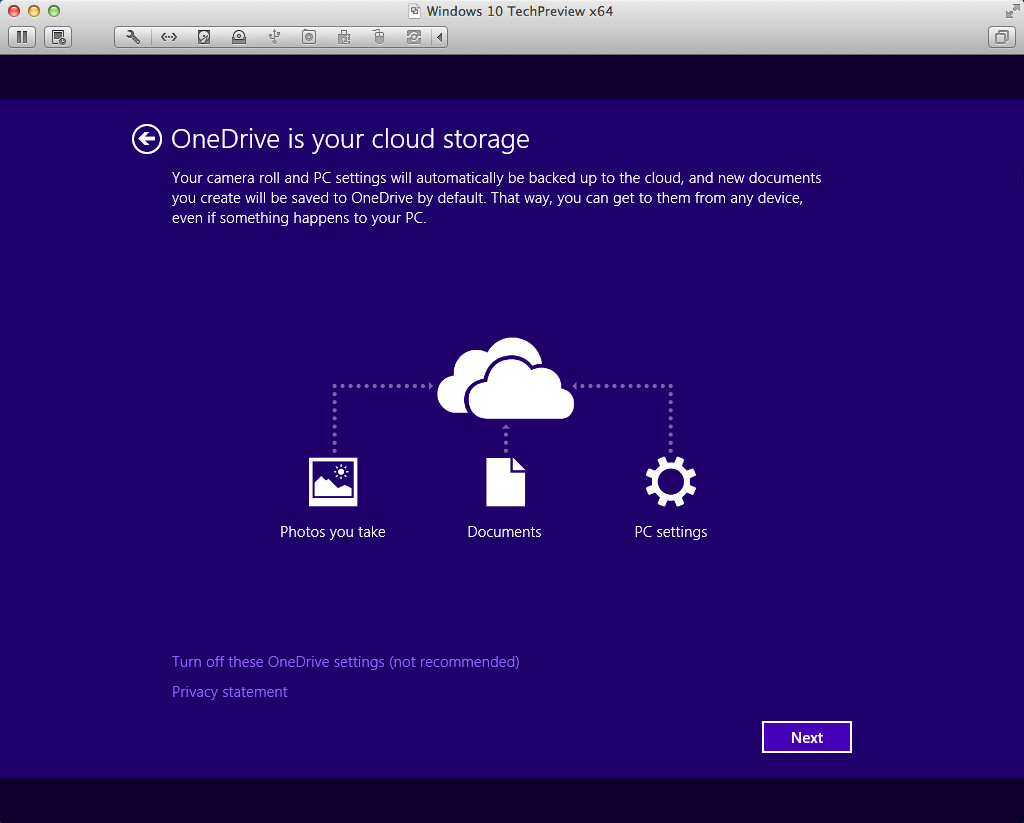
First time set up will also ask you if you would like to join Microsoft’s one drive cloud storage system. Answer as you wish. I chose to “Turn off these OneDrive settings..“.
A few more clicks and Windows is on its way to configuring your system and bringing you to the Windows 10 desktop. As you have heard the Windows Start Button & Programs menu is back, thank you Jesus!
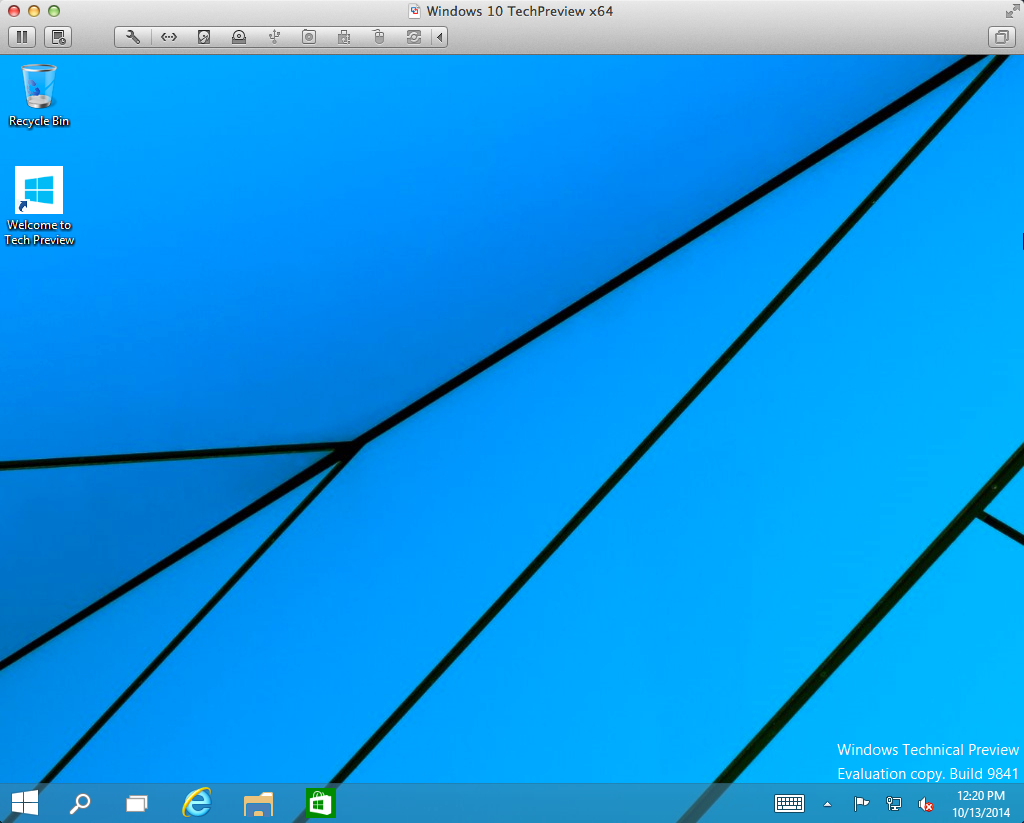
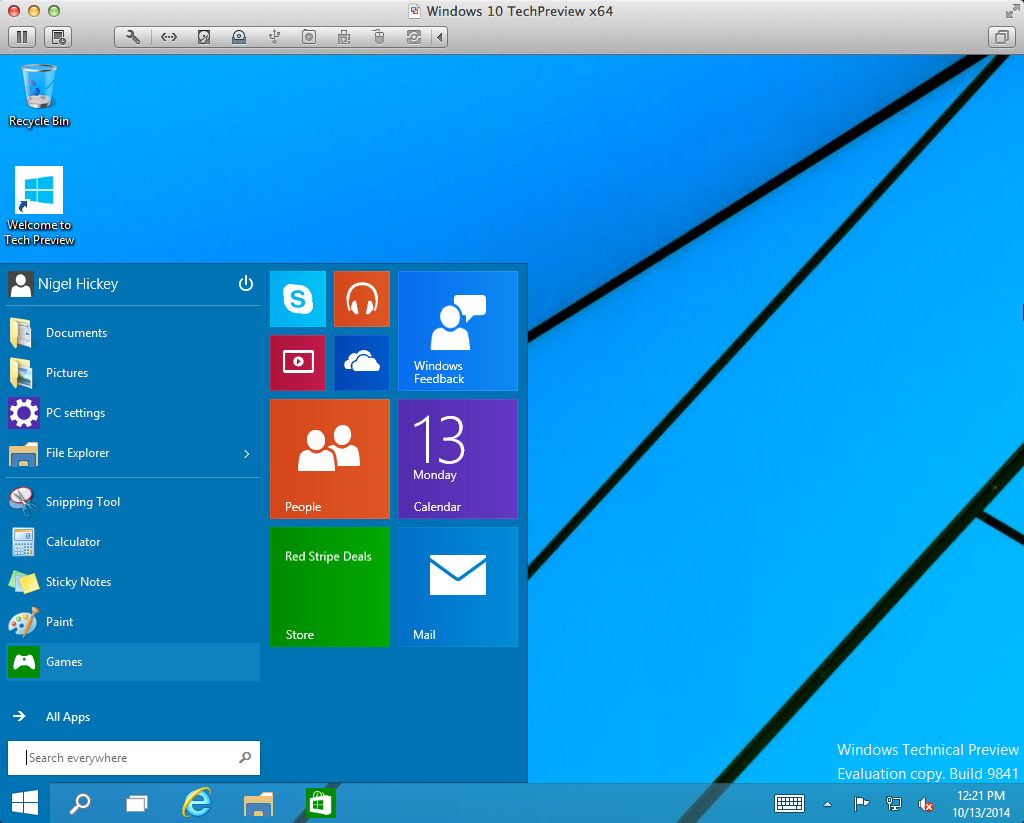
Right off the bat I think I enjoy the new interface that Windows 10 has. Again, the Start Menu is back and it feels more like an advanced version of Windows 7 and I like that. I don’t need to have a degree in “swipe left, swipe right” before I can manage the system. I just use the functions and the OS today that I have come to learn over the years of using Windows systems.
VMware Tools, Why Not
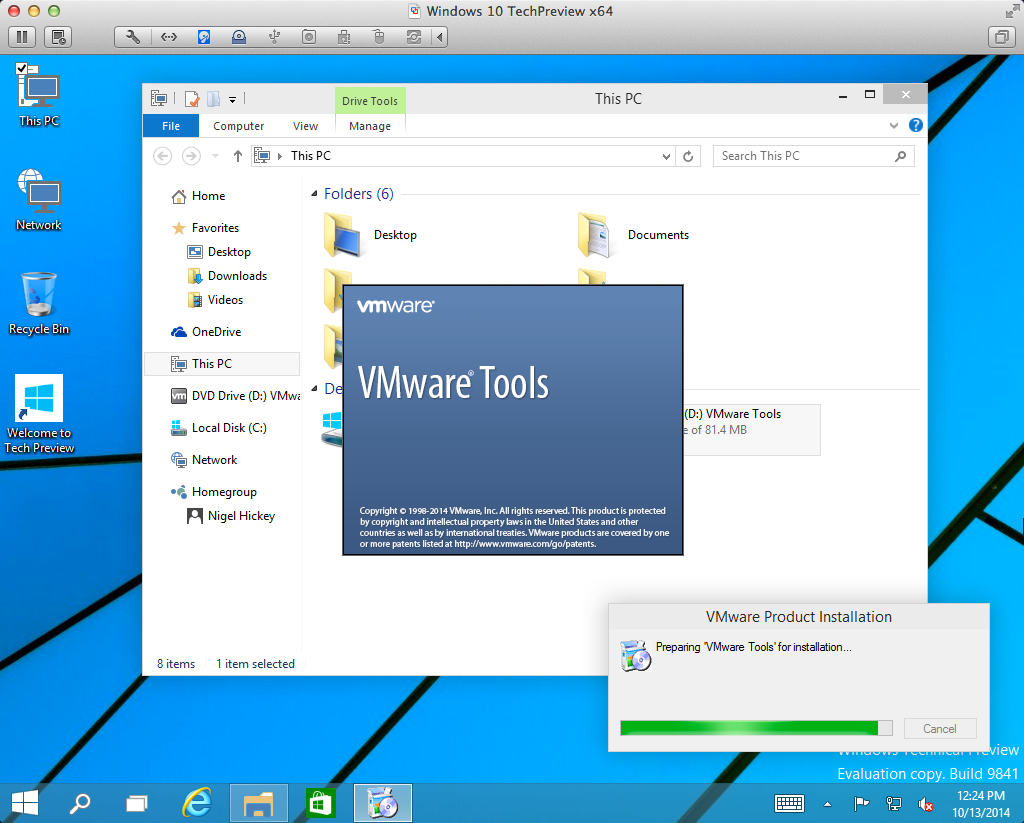
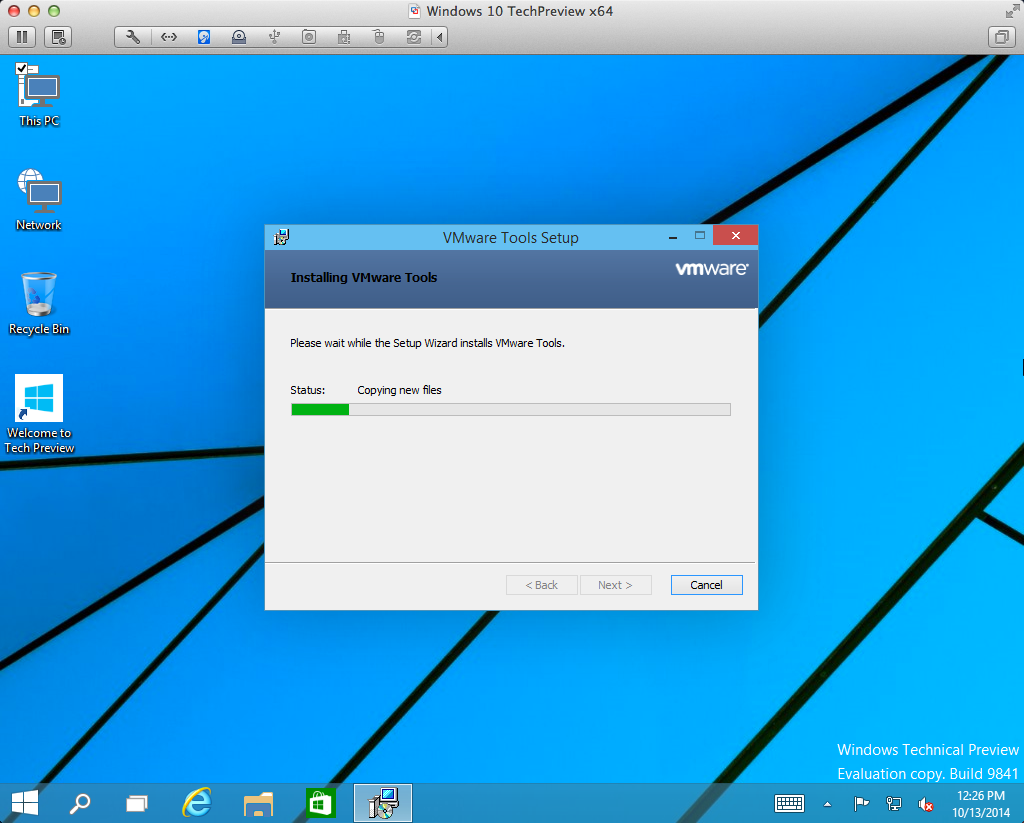
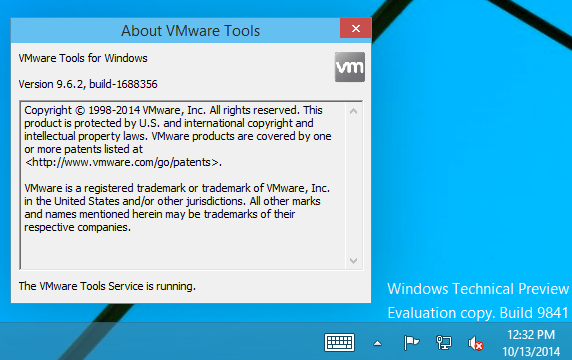
Running the installation of VMware tools within Windows 10 is the same as every other Windows operating system that is hosted on VMware fusion. Not much difference here. I just felt that I should do it to see if it even works or if there was any bugs or error messages that came to light. Nothing so far has looked out of the ordinary.
Thoughts
Like I mentioned earlier, I believe Windows 10 can be the next good replacement for Windows 7. I am a huge fan of Windows 7 and staying on Windows 7 as long as possible (sounds like the same thing that happened to me during the Windows XP Age lol). I haven’t loaded any software on this install of Windows 10 yet besides VMware tools so I plan to do that over the next couple of weeks and see how the system reacts to older software that I have laying around the house. I may even consider flipping it into a linked clone within my VMware View environment, why not, right?
Let me know what you think if you are using Windows 10 yet in your playground/labs or maybe running it ‘full time’ to give it a whirl. I would be happy to hear other use cases or fun things you have tried so far. Also tell me about any bugs or Easter Eggs you have come across in your testing.
hi,
Are you having an issues where you cannot connect USB devices, such as USB memory sticks, to the Win 10 guest VM?
I am running Fusion 6.0.5. with Windows 10 build 9841.
USB devices connect fine to a Windows 7 VM on the same Fusion installation.
Does anyone know for sure if Fusion 7 fixes this issue?
thanks
Hi Keith,
I have not had much time to mess with adding USB flash drives yet. But I can say that I have used a USB keyboard & mouse without any harm so far. I will have to test out this theory of the flash memory USB to see what happens.
My assumption is since Fusion 7 has support for Windows 8.1 that it will be “close enough” for now to Windows 10.
You have to also remember, this Windows 10 is just a Tech Preview and will have bugs, issues, etc. I wouldn’t count on this being a machine I cared to use 7 days a week yet.
Nigel
Great article Nigel, just downloaded the latest Win 10 bits and loading on Fusion 7.1 Pro
Will let you know if I run into anything weird.
Great stuff vNelson!
Let me know what you find out. I did have some USB issues like Keith mentioned above so it would be cool to see those gone. That also could be due to me running v6.0 of Fusion vs. v7.x like you have now.
Thanks for the read!
Nigel
Will I need a professional version of Fusion 6 for Windows 10?
Hey Albert,
I am sorry for my delayed reply here. I think that both the Standard & Pro versions of VMware Fusion (version 7 now) have support for Windows 10 and all of the drivers, etc, that I had issues with in Fusion 6. It does work on Fusion 6, it just has some issues or bugs with USB drivers I feel. Upgrade to 7 for better Win10 support I’d say. Good Luck!
Nigel
This is pretty old by now, but you can get around entering your email at installation by selecting “Don’t have an account?” then following the steps to set up a local account.
Hey Quinten,
I have read a few “How To’s” on this subject around the web and most indicate that you have to still hit “create a Microsoft Account”. Then once you get on the Microsoft Account Creation page you must click a link that says “Sign in without a Microsoft Account”. This supposedly closes the Microsoft Account Creation webpage then you can create a local user account on the computer.
Sounds really frustrating right? I have not tried this run-around yet and I hope the Enterprise release for Window 10 has a better way or us SysAdmins will go bananas! 🙂
Nigel
When I run Windows 10 Pro in Unity (aka “seemless”) Mode, the Windows desktop doesn’t disappear. Any ideas?
Hi Stephen,
Great question here. So after a little bit of research I have found that VMware is NOT fully supporting Windows 10 on VMware Fusion 7 (7.1.2 is the highest just now) yet. So if you have version 6, its probably not going to work either.
I did find this quote “Win10 is not supported officially in Fusion 7, but you could try VMware Fusion Technology Preview 2015 .There is also a workaround for Fusion 7.1.2 users. Changing the resolution in the Windows 10 VM resolved the issue. Unity should work fine with one of these resolutions 1926 x 1340, 1920 x 1200, 1920 x 1440.” in the VMware Fusion Community, links below.
I hope this helps!
VMware Fusion Technology Preview 2015: https://communities.vmware.com/community/vmtn/fusion/vmware-fusion-technology-preview-2015
VMware Fusion Community (Thread about Unity issues): https://communities.vmware.com/thread/517401